
It’s always easiest if you’ve already removed the screen—especially for non-touch displays, as the screen label alone is usually all we need. If the screen hasn’t been removed or it’s a touch display, we may need the full serial number or model info from the device itself. This can typically be found on the laptop’s base, under the battery, or accessed through Windows settings. Follow these steps to get brand specific model number .
Find product and serial numbers for HP , Dell , Lenovo Laptops
Screen already removed
To find out LCD screen model number you need to take the screen out of the laptop and check the back of the LCD screen.
On the back side of the screen you can see one or several labels with numbers. 99% of the screens on the market today have manufacturer’s code and screen size included in the model number. For example, screen model number B101AW06 means that the screen is manufactured by AU Optronics and this screen’s diagonal size is 10.1″.
Below is a list of most common laptop LCD screen manufacturers with their abbreviations:
AU Optronics – B
BOE Hydis – HB
Chi Mei / Innolux – N
Chunghwa – CLAA
HannStar – HSD
IVO – M
LG Display – LP
Samsung – LTN
Sharp – LQ or LM
Toshiba – LTM or LTD
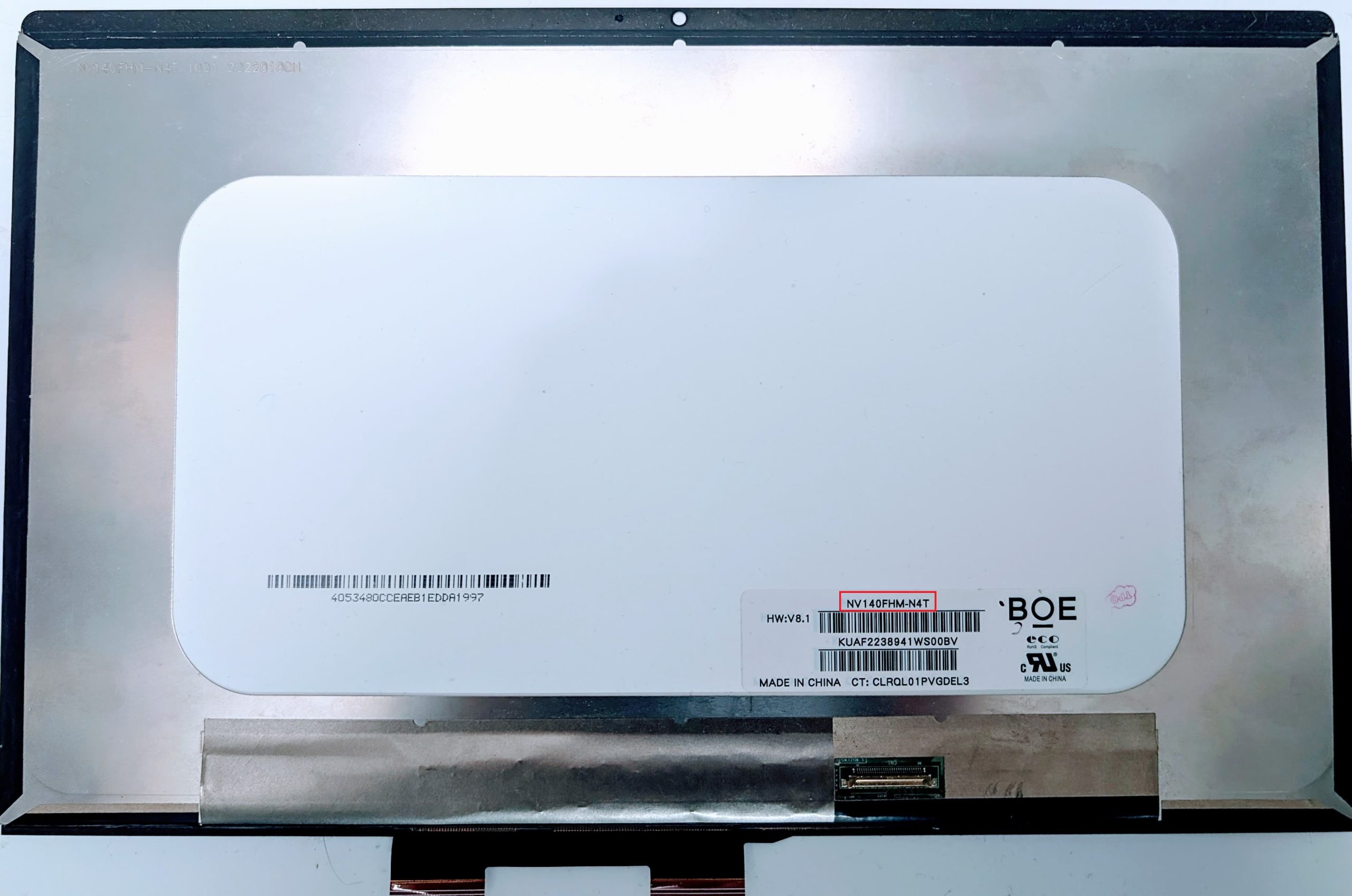
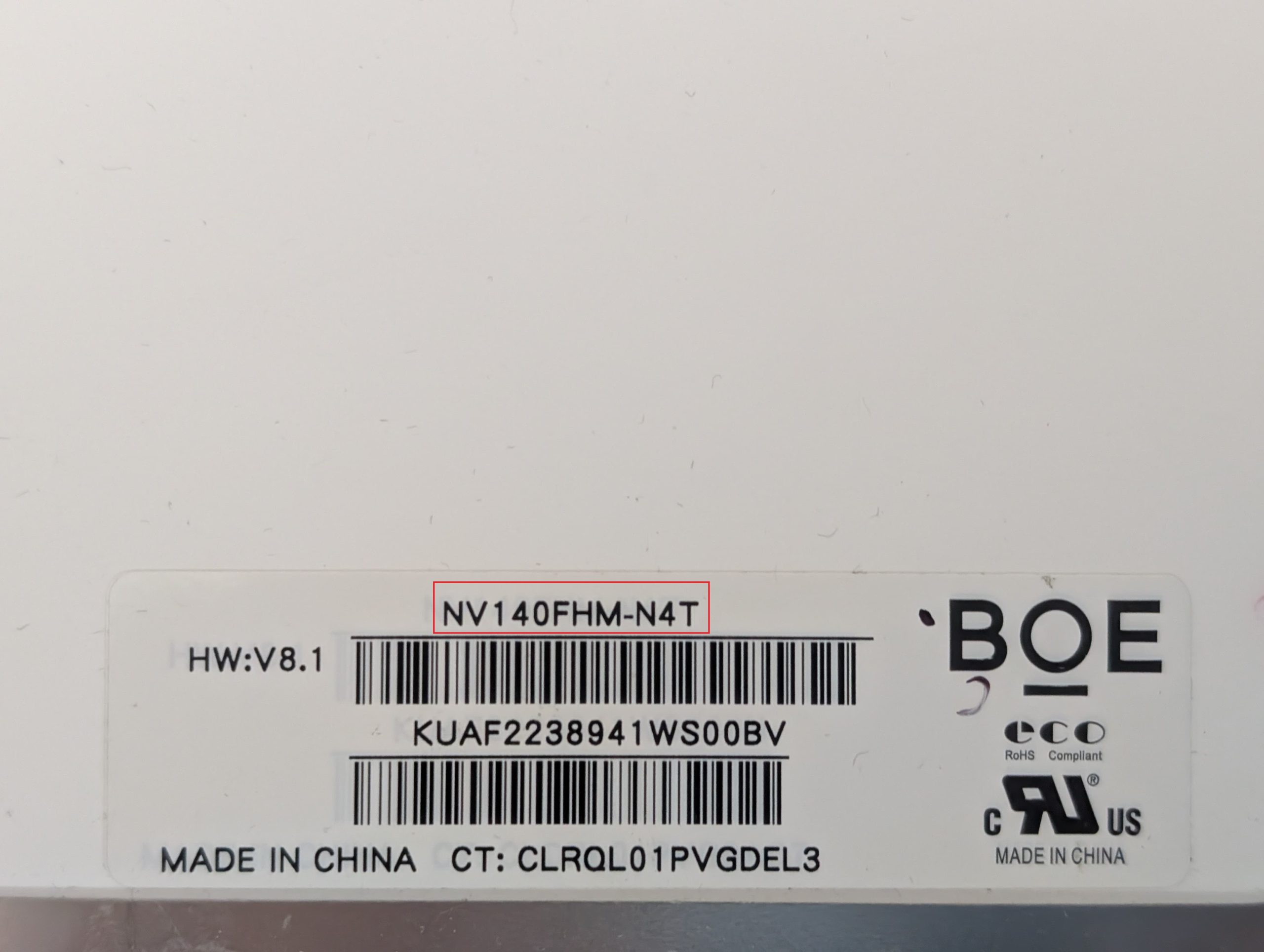
Physical device accessible
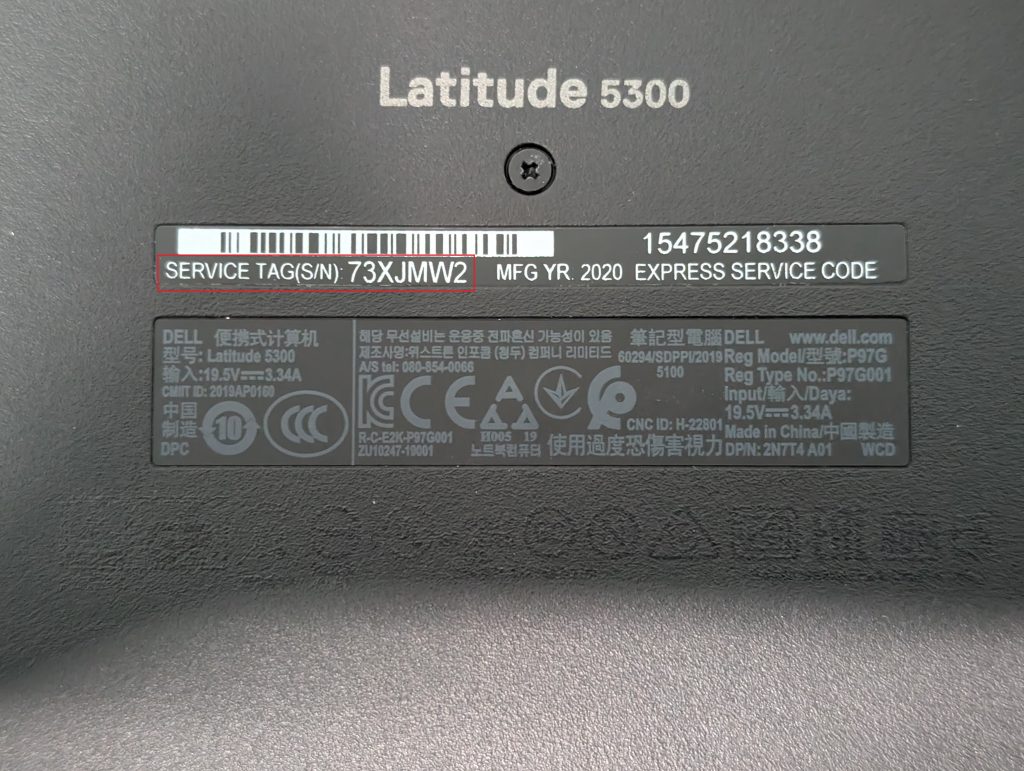
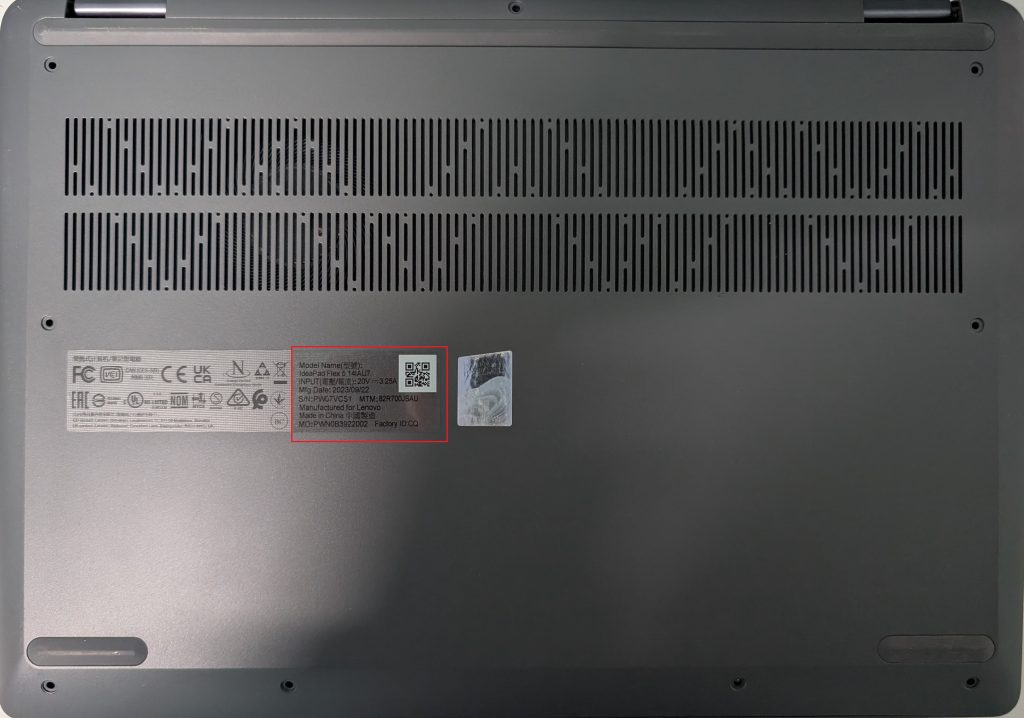
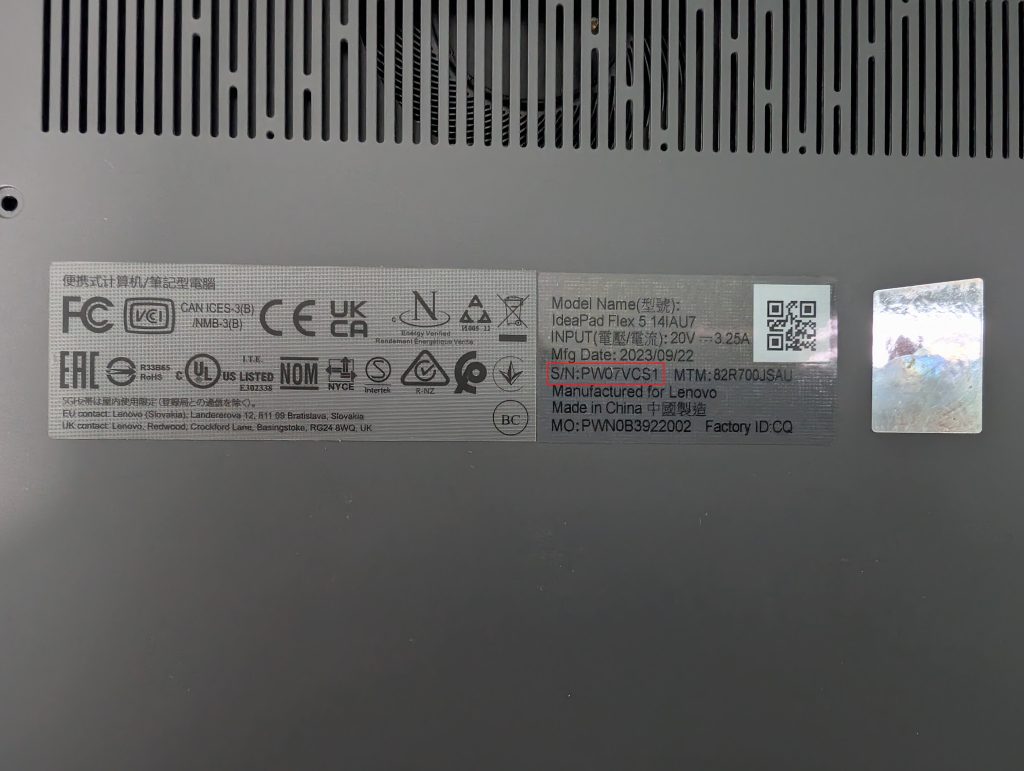
Find your product name, number, and serial number on the computer or on the box it shipped in.
For HP
On the bottom of the notebook
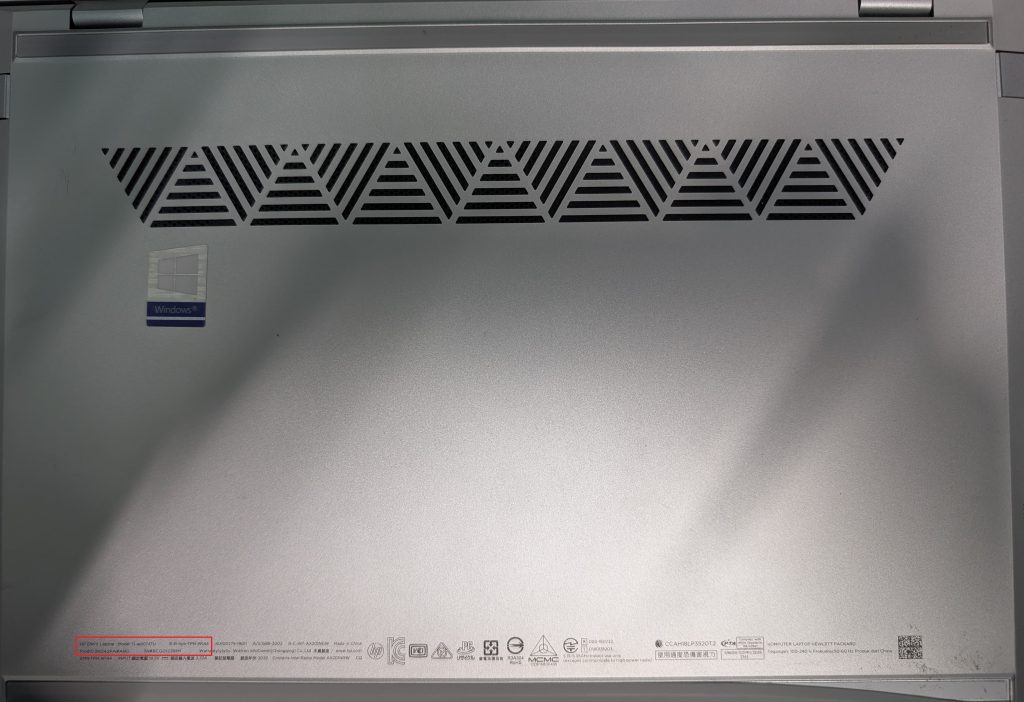
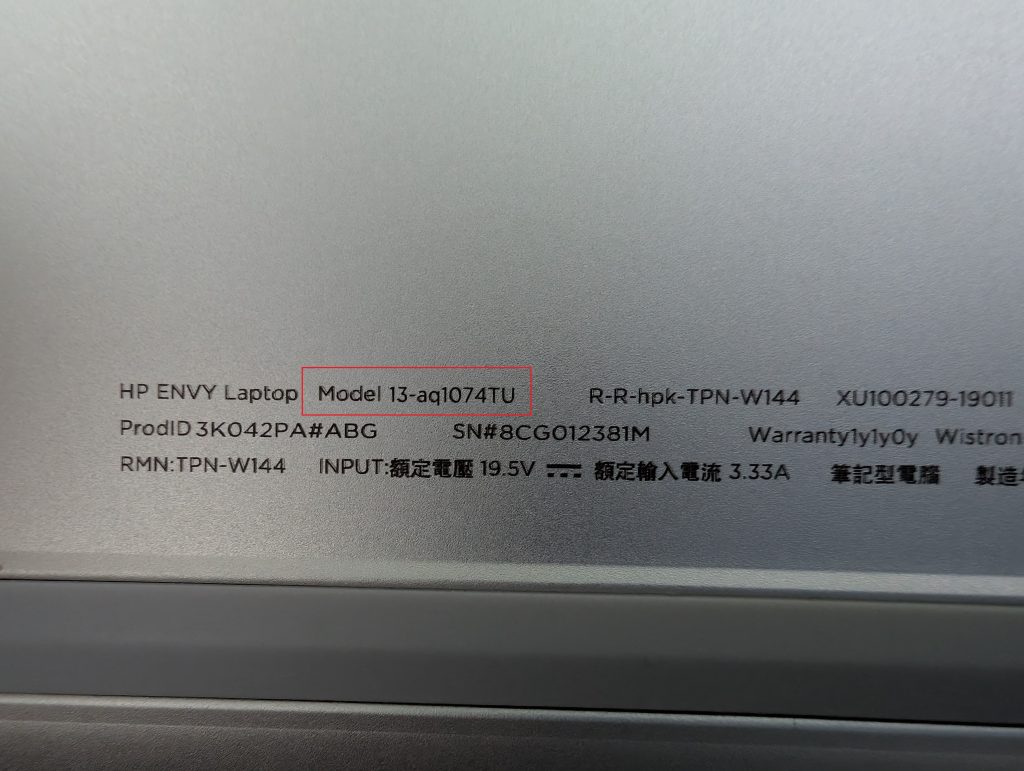
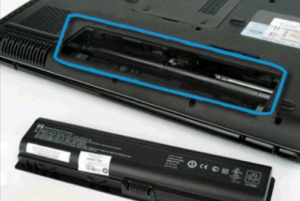
Inside the battery compartment
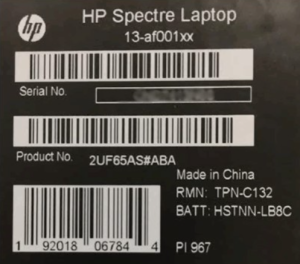
On the box that the notebook shipped in
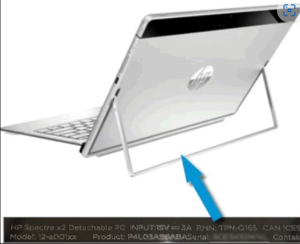
On the kickstand
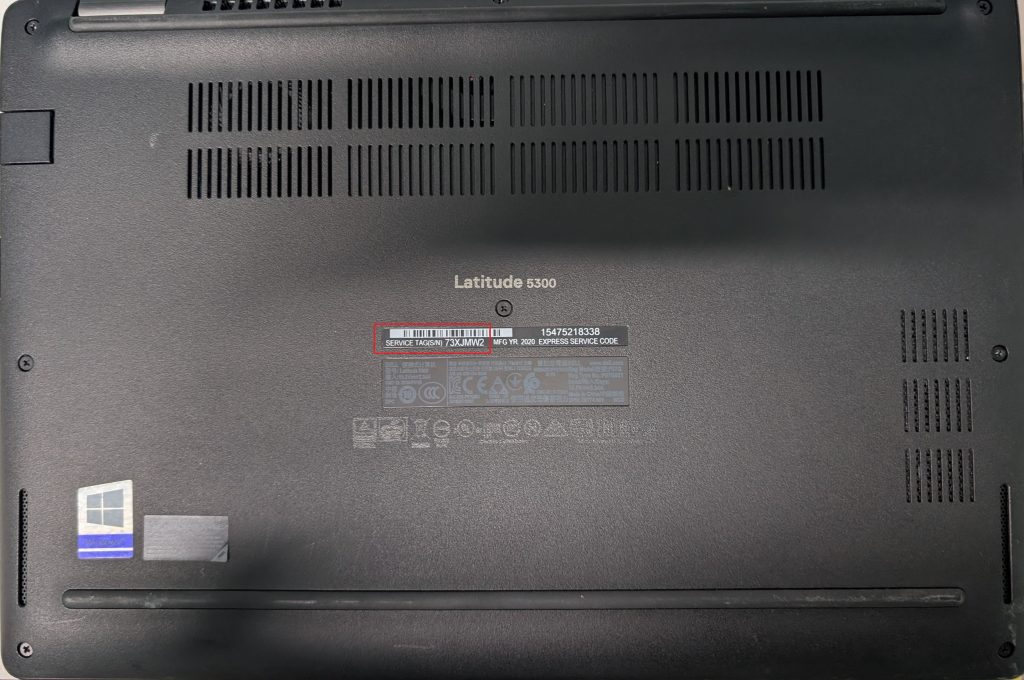
DELL
Lenovo
Windows accessible
Open a Command Prompt or PowerShell window to get started. On Windows 11, Windows 10, or Windows 8, right-click the Start button and select “Command Prompt,” “PowerShell,” or “Windows Terminal.” On Windows 7, press Windows + R, type “cmd” into the Run dialog, and then press Enter.
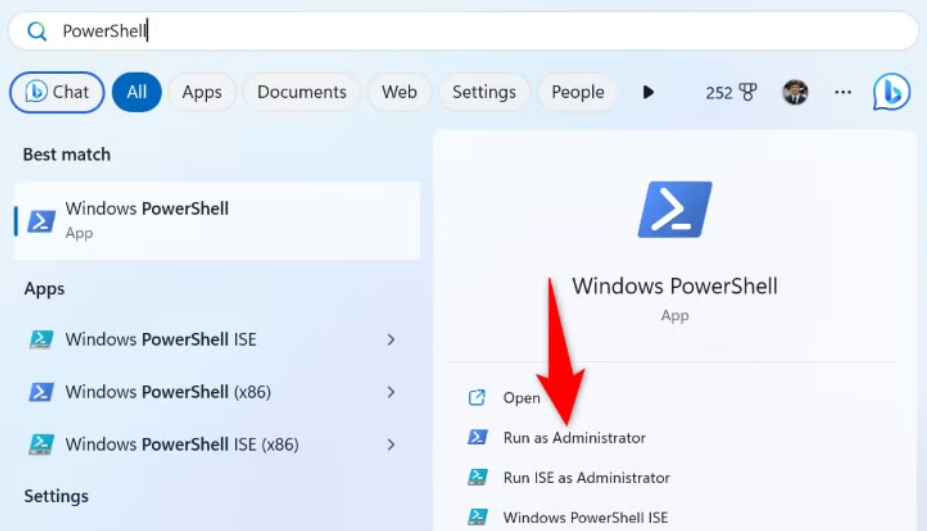
At the Command Prompt, type the following command and then press Enter:
wmic bios get serialnumber
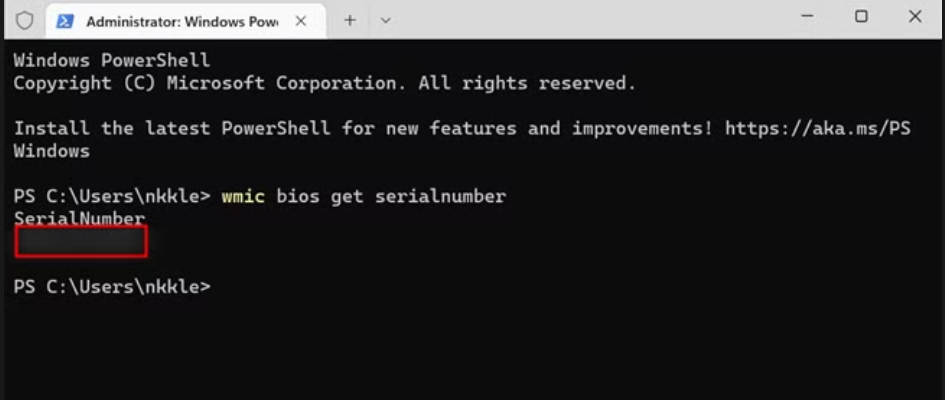
You’ll see the computer’s serial number displayed beneath the text “SerialNumber”. This command uses the Windows Management Instrumentation Command-line (WMIC) tool to pull the system’s serial number from its BIOS.
Find product and serial numbers for Acer , MSI , Metabox , Asus , Razer and more
Screen already removed
To find out LCD screen model number you need to take the screen out of the laptop and check the back of the LCD screen.
On the back side of the screen you can see one or several labels with numbers. 99% of the screens on the market today have manufacturer’s code and screen size included in the model number. For example, screen model number B101AW06 means that the screen is manufactured by AU Optronics and this screen’s diagonal size is 10.1″.
Below is a list of most common laptop LCD screen manufacturers with their abbreviations:
AU Optronics – B
BOE Hydis – HB
Chi Mei / Innolux – N
Chunghwa – CLAA
HannStar – HSD
IVO – M
LG Display – LP
Samsung – LTN
Sharp – LQ or LM
Toshiba – LTM or LTD
If screen's not removed we need some specifications of the laptop
If the screen hasn’t been removed, we can still help — we just need a few details about your laptop. Here’s how you can find everything we need:
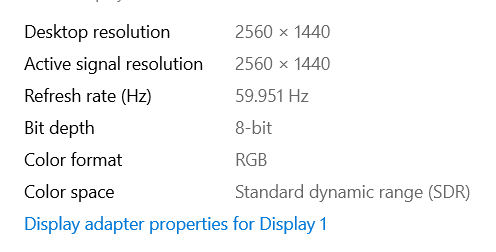
For Screen Resolution and Refresh Rate
-Right-click anywhere on your desktop.
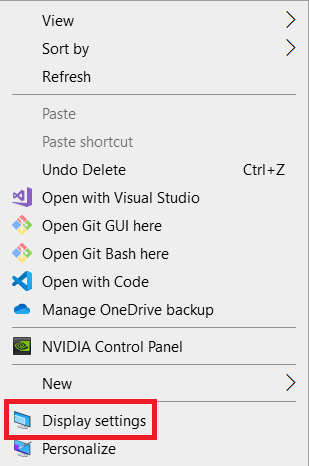
-Click Display settings.
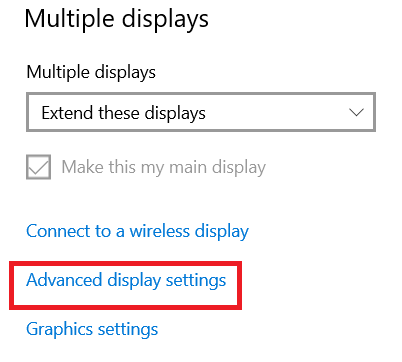
-Scroll down to Advanced display settings.
Specifications will look like –
Find product and serial numbers for Toshiba
Screen already removed
To find out LCD screen model number you need to take the screen out of the laptop and check the back of the LCD screen.
On the back side of the screen you can see one or several labels with numbers. 99% of the screens on the market today have manufacturer’s code and screen size included in the model number. For example, screen model number B101AW06 means that the screen is manufactured by AU Optronics and this screen’s diagonal size is 10.1″.
Below is a list of most common laptop LCD screen manufacturers with their abbreviations:
AU Optronics – B
BOE Hydis – HB
Chi Mei / Innolux – N
Chunghwa – CLAA
HannStar – HSD
IVO – M
LG Display – LP
Samsung – LTN
Sharp – LQ or LM
Toshiba – LTM or LTD
Physical device accessible
To find the model-part number, look for the sticker on the bottom of your Toshiba laptop. The sticker should look like the following:
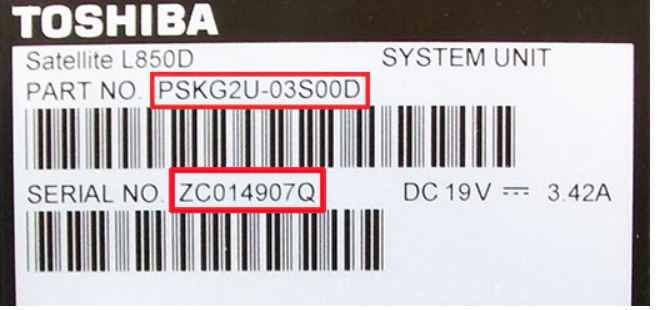
If you can’t find a sticker on the underside of your laptop, you can also find the model-part number by using Command Prompt. Which should look like the following:
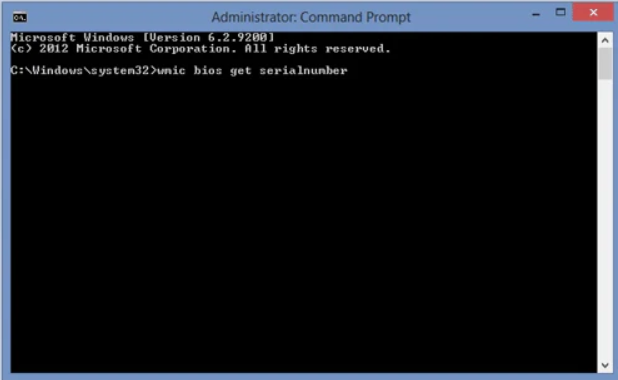
You can get to the Command Prompt by pressing the windows key on your laptop then typing “cmd”. Once you have done this type “wmic bios get serialnumber” to find your serial number.
Find product and serial numbers for Apple Macbooks
Physical device accessible
Start by removing any case or protector from your MacBook and turning it over. In the first line of text you will see a model identifier starting with A.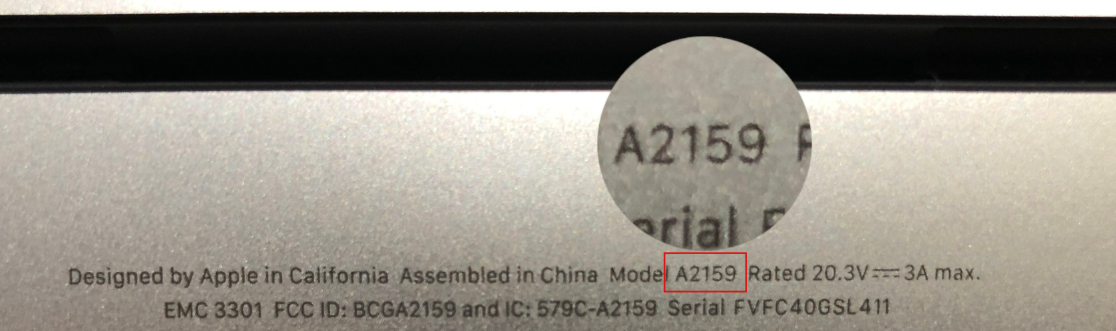
OSX accessible
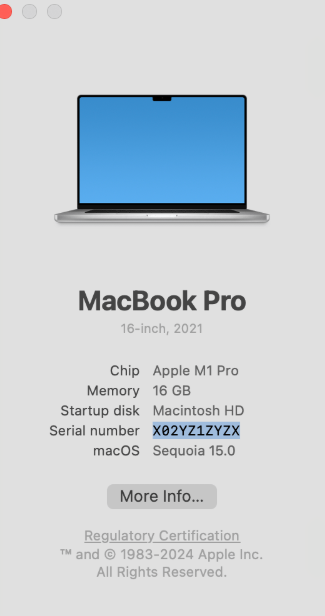
From the Apple menu in the corner of your screen, choose About This Mac. The window that will open includes the model name and serial number, as shown in the example below. You can also enter the serial number on checkcoverage.apple.com to find the model name.
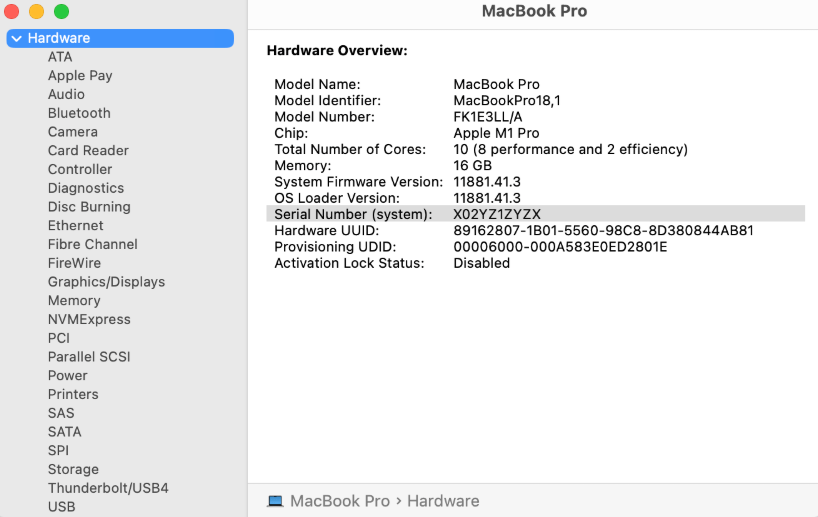
System Information app
- Press and hold the Option key on your keyboard while choosing Apple menu > System Information from the menu bar.
- Select Hardware in the sidebar.
- Find the serial number on the right. (To have System Information read your serial number aloud, choose File > Speak Serial Number, or press Command-4.)
- To find the specific model name, enter the serial number on checkcoverage.apple.com.
Terminal app
-Open the Terminal app, which is in the Utilities folder of your Applications folder. You can also open it from the Utilities menu in the macOS Recovery menu bar.
-Type or paste this command in Terminal, then press Return: ioreg -l | grep IOPlatformSerialNumber
-Look for the serial number listed after “IOPlatformSerialNumber” in the results shown in Terminal.